Parakaleo Drive Support
Something not working? You're in the right place. Most problems come down to a permission or a setting, and they're quick to fix.
The pictures below show what you'll see. Your phone may look slightly different, for example in light mode or another language.
The first screen: accepting our terms
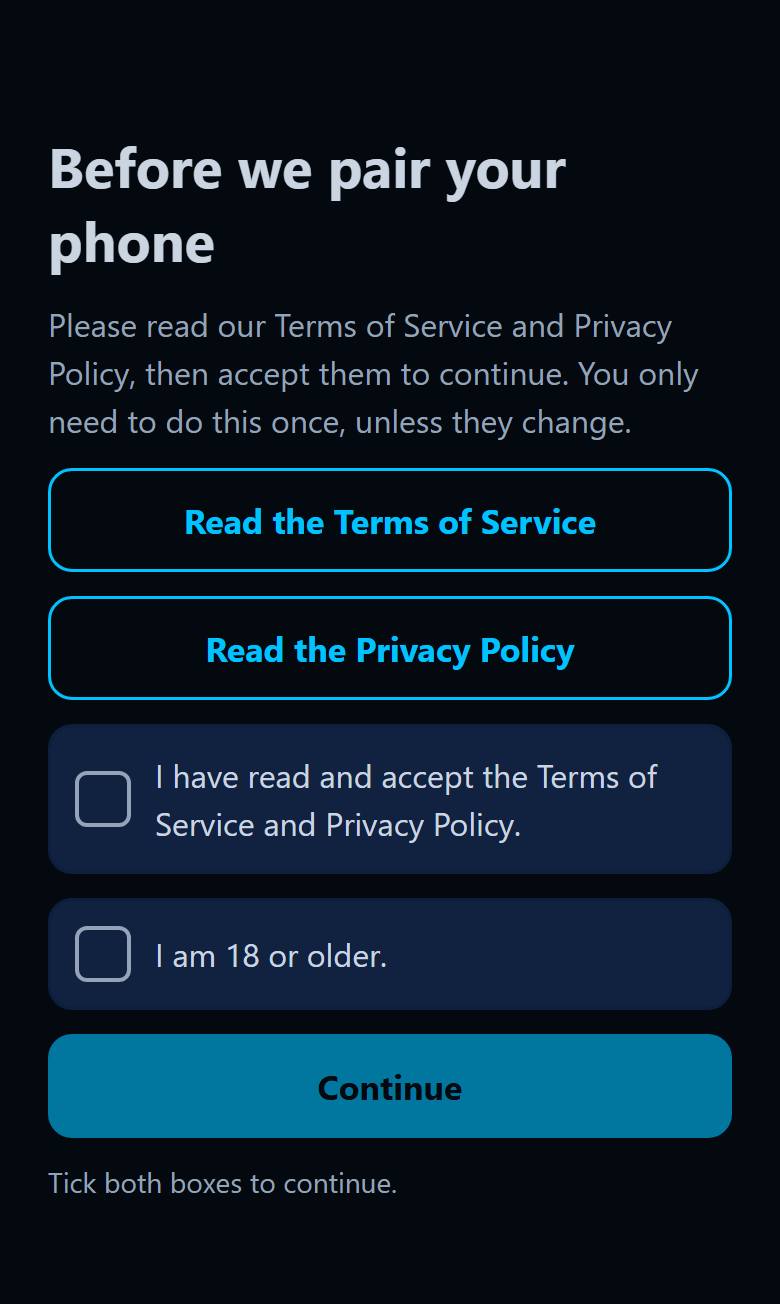
The first time you open Parakaleo Drive, you'll see this screen before you pair your phone. Use the two buttons at the top to read our Terms of Service and Privacy Policy, then tick both boxes: one to say you accept them, and one to say you're 18 or older. Continue stays dimmed until both are ticked.
Why we ask: we want you to know how the app works and what it does with your information before it records anything. It's a one-time step, and nothing is ticked for you. We keep a simple note of the version you accepted and when. If our terms ever change, we'll show this screen again so you can read what's new. If you'd rather not accept, just close the app. Nothing is recorded.
Pair your phone with a vehicle
- In the Parakaleo portal, go to Add a Vehicle, then Parakaleo Mobile, and add a phone vehicle. You'll see a pairing code and a QR code.
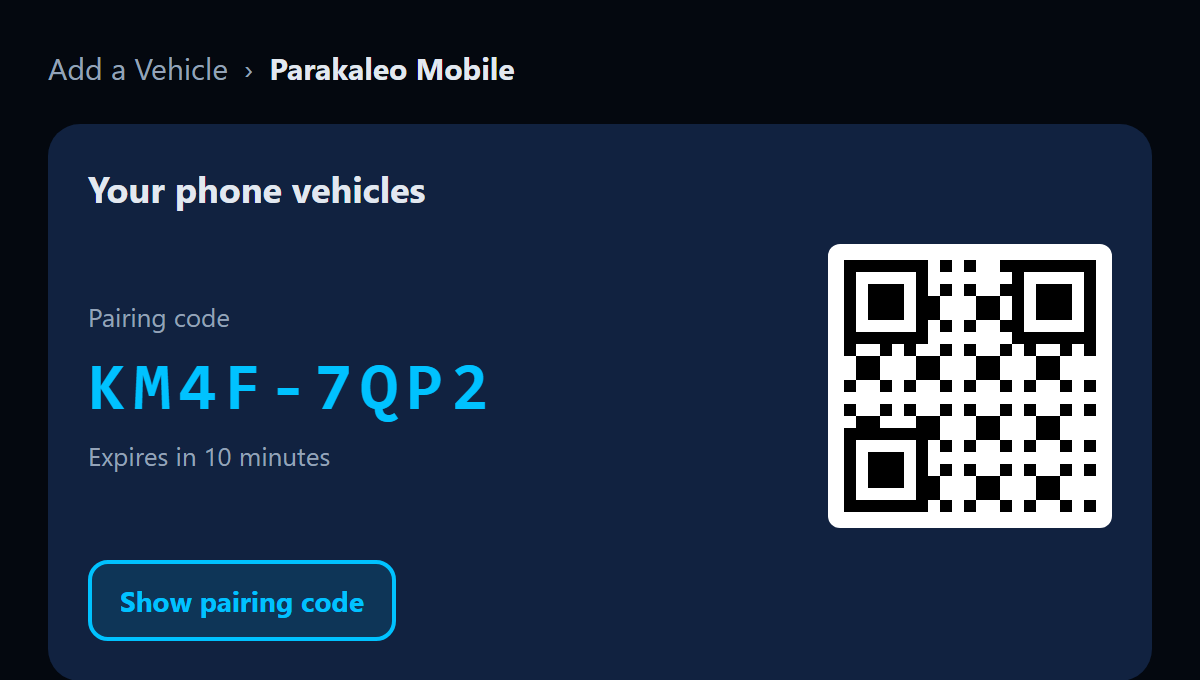
An illustration of the portal. Your screen may look a little different. - Open the Parakaleo Drive app. Type the code, or scan the QR code with the app's scanner or your phone's camera.
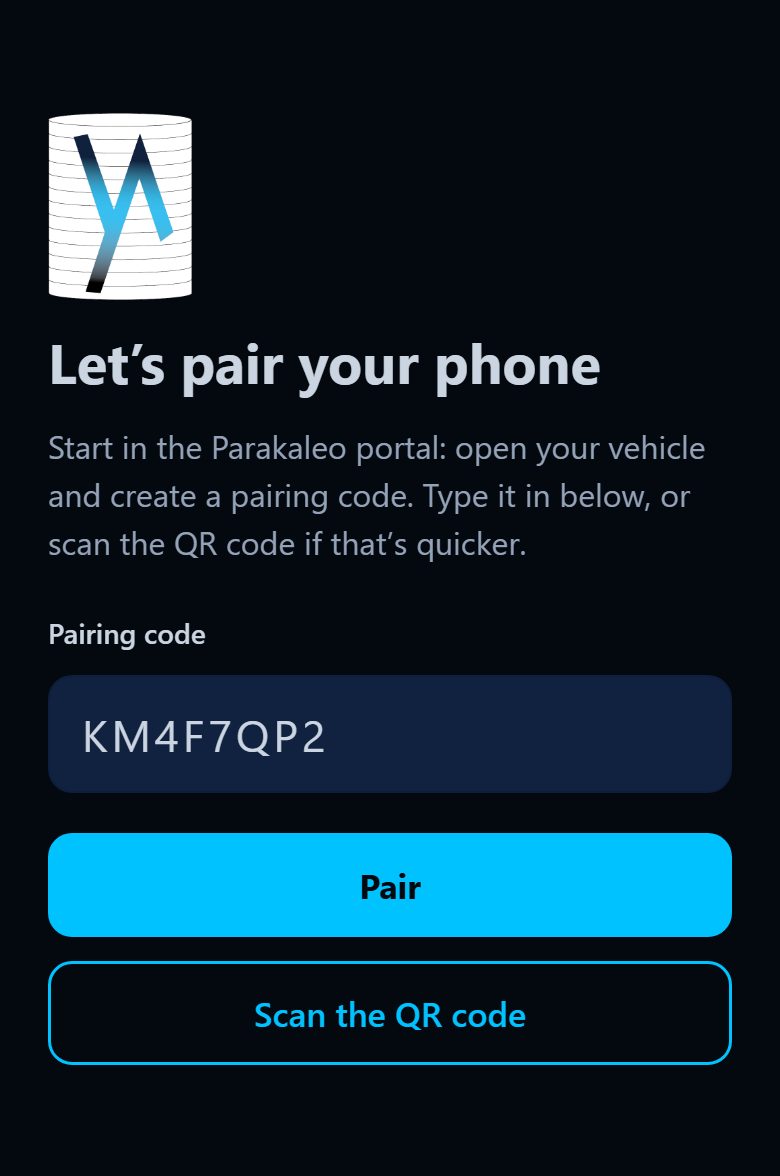
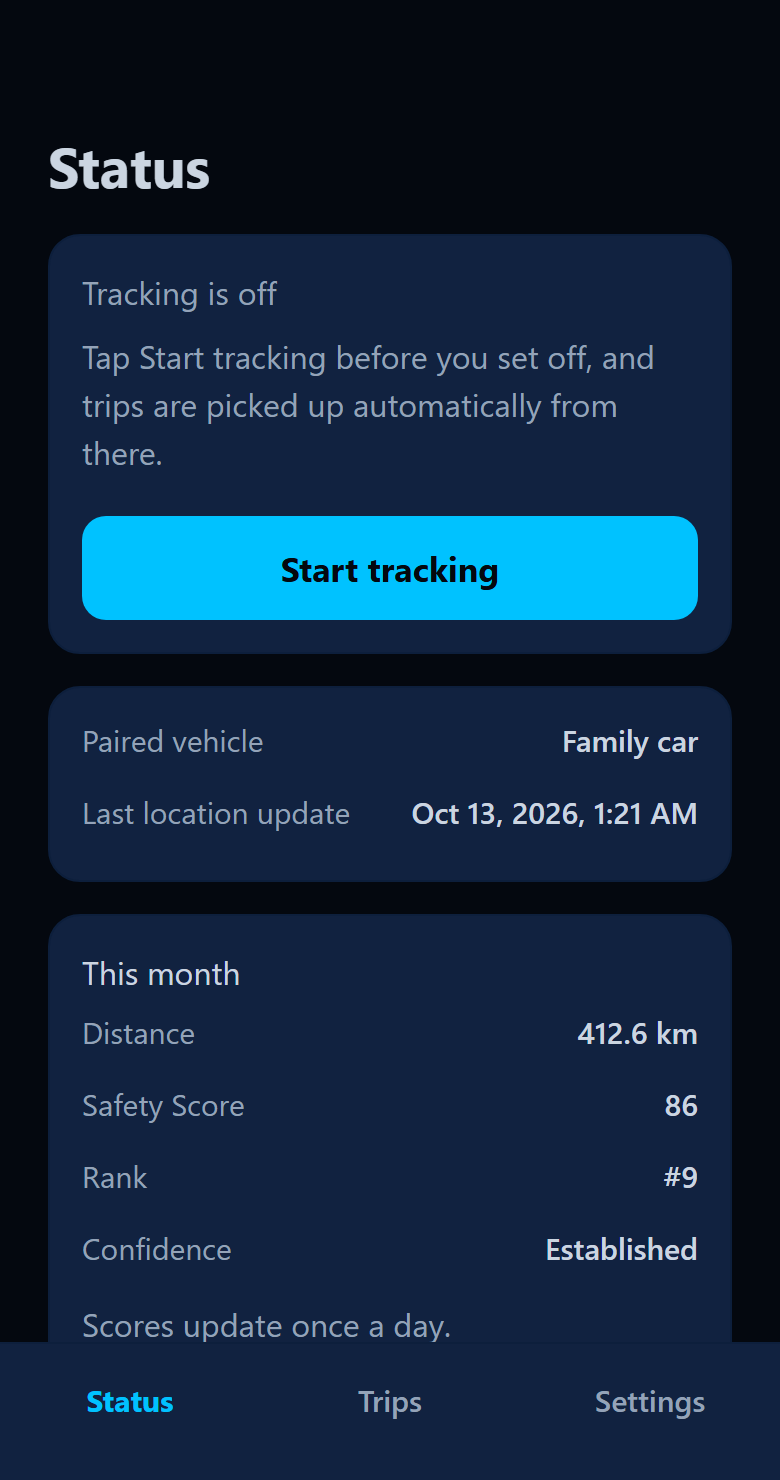
- Done. The vehicle's name appears in the app, and the portal shows the phone as paired.
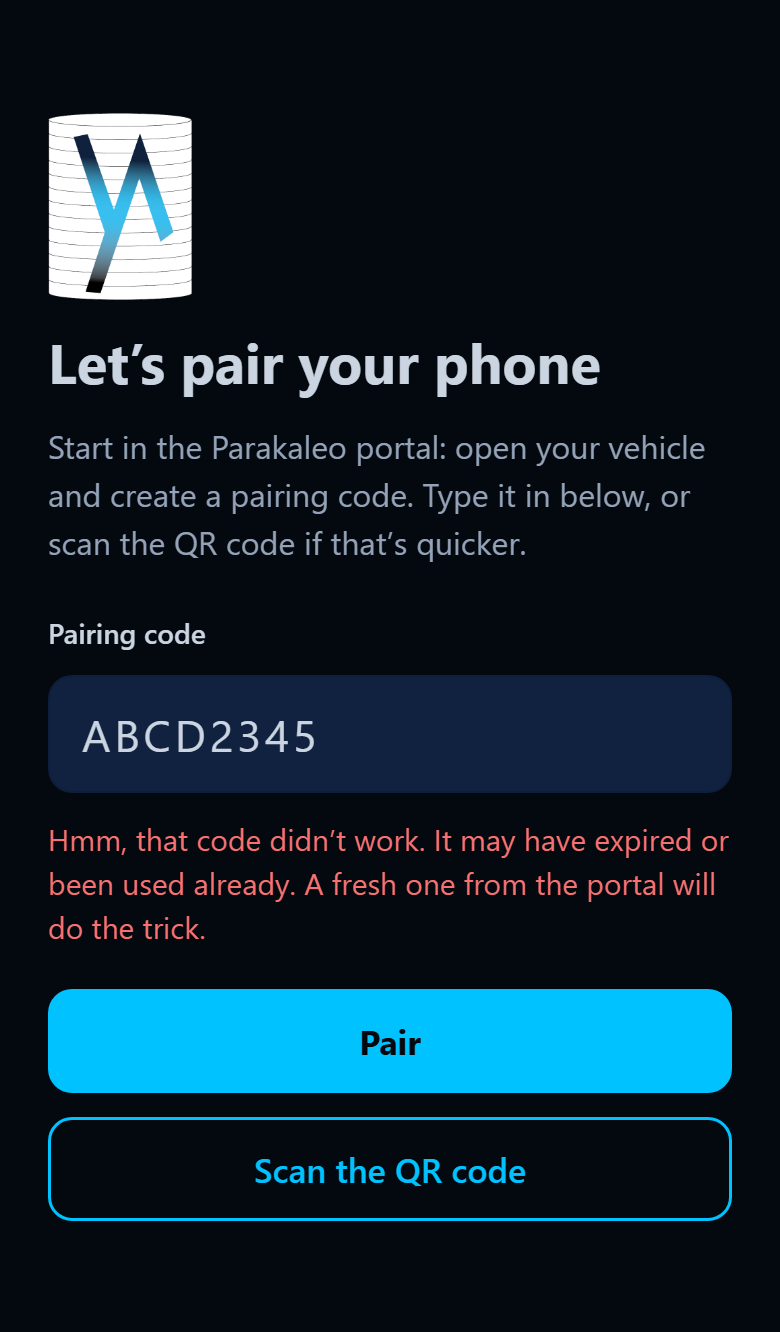
The code has 8 characters, works once and expires after 10 minutes. If it has run out, just show a new one in the portal. Each vehicle pairs with one phone at a time, so pairing a new phone replaces the old one. When you pair, the app asks you to accept the Terms of Service and Privacy Policy and to confirm that you are 18 or older. It records the version you accepted.
Trips are not being recorded
Work through these in order. Most people find the cause by step 3.
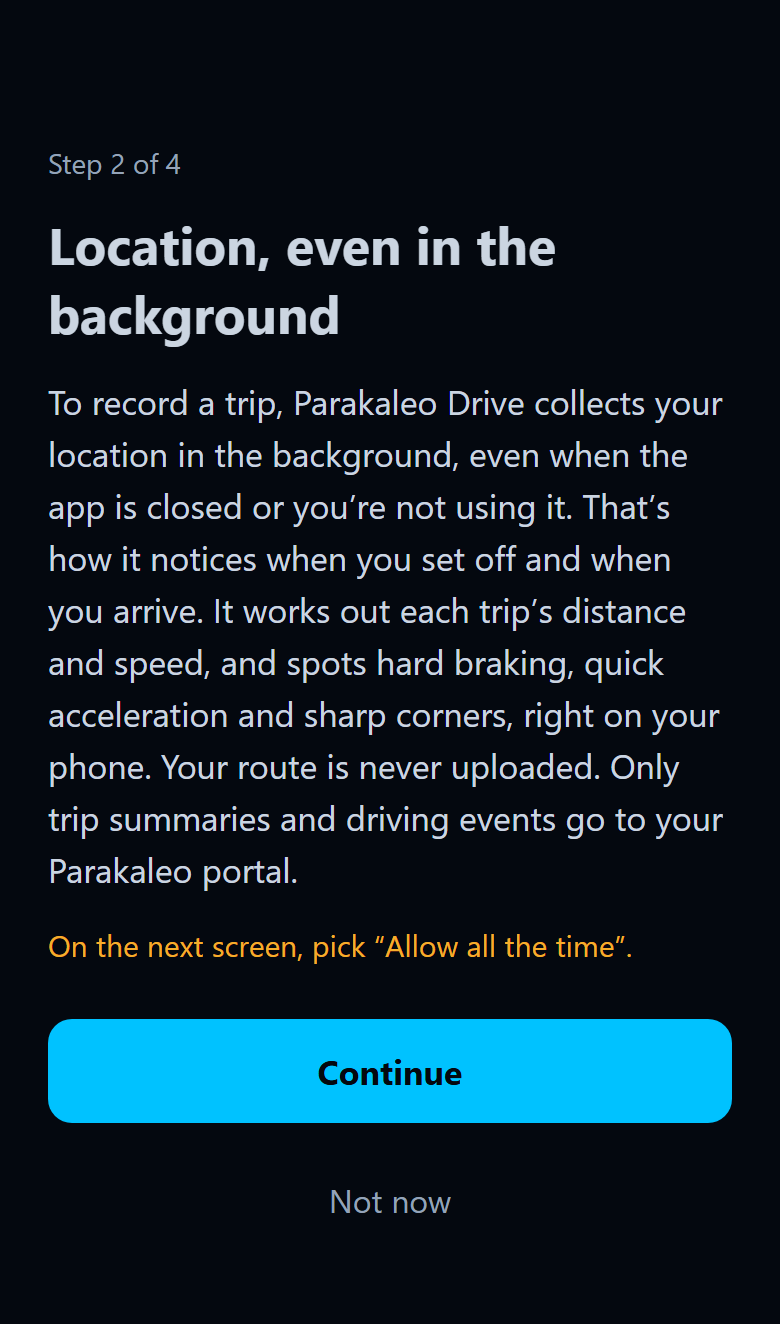
- Location must be set to Always. iPhone: Settings, Parakaleo Drive, Location, Always. Android: Settings, Apps, Parakaleo Drive, Permissions, Location, Allow all the time.
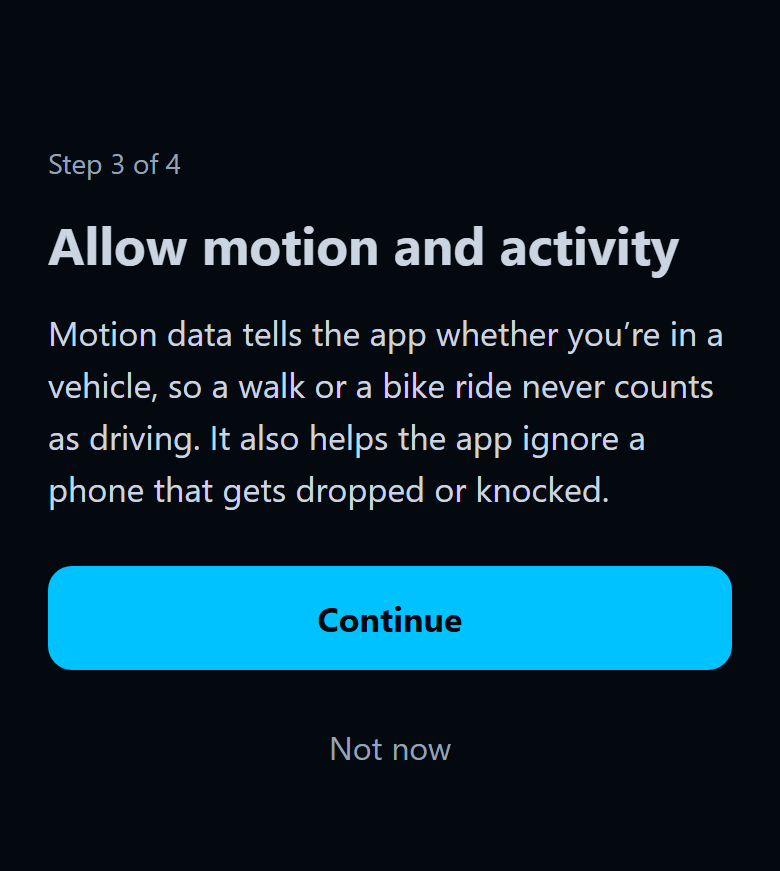
- Motion permission must be on. iPhone: Settings, Parakaleo Drive, Motion & Fitness. Android: Settings, Apps, Parakaleo Drive, Permissions, Physical activity.
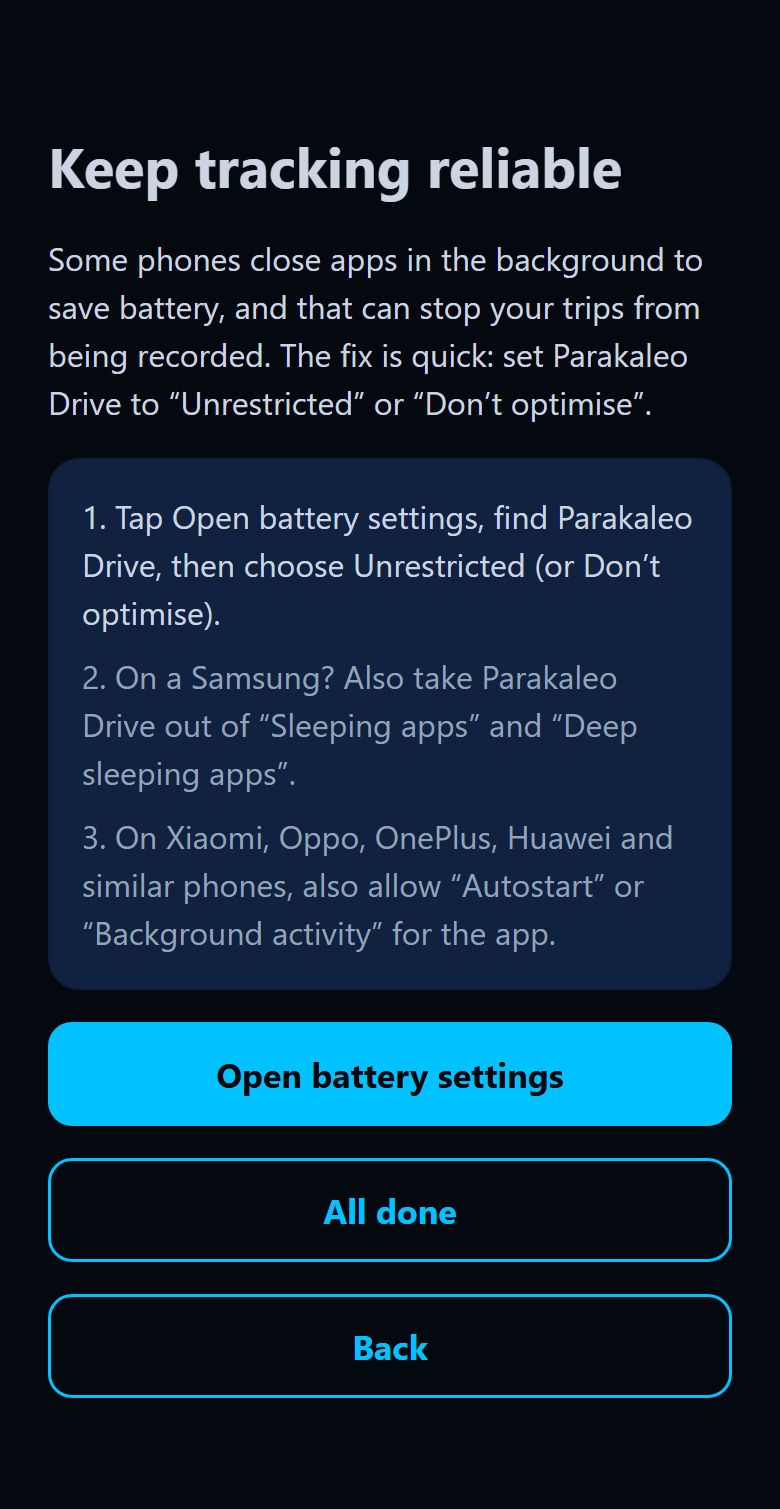
- Turn off battery optimisation on Android. Settings, Apps, Parakaleo Drive, Battery, choose Unrestricted. In the app, Settings, Battery and reliability walks you through it. Some phone makers also have a separate "app launch" or "protected apps" list, so look for Parakaleo Drive there too. On iPhone, keep Background App Refresh on and don't force close the app.
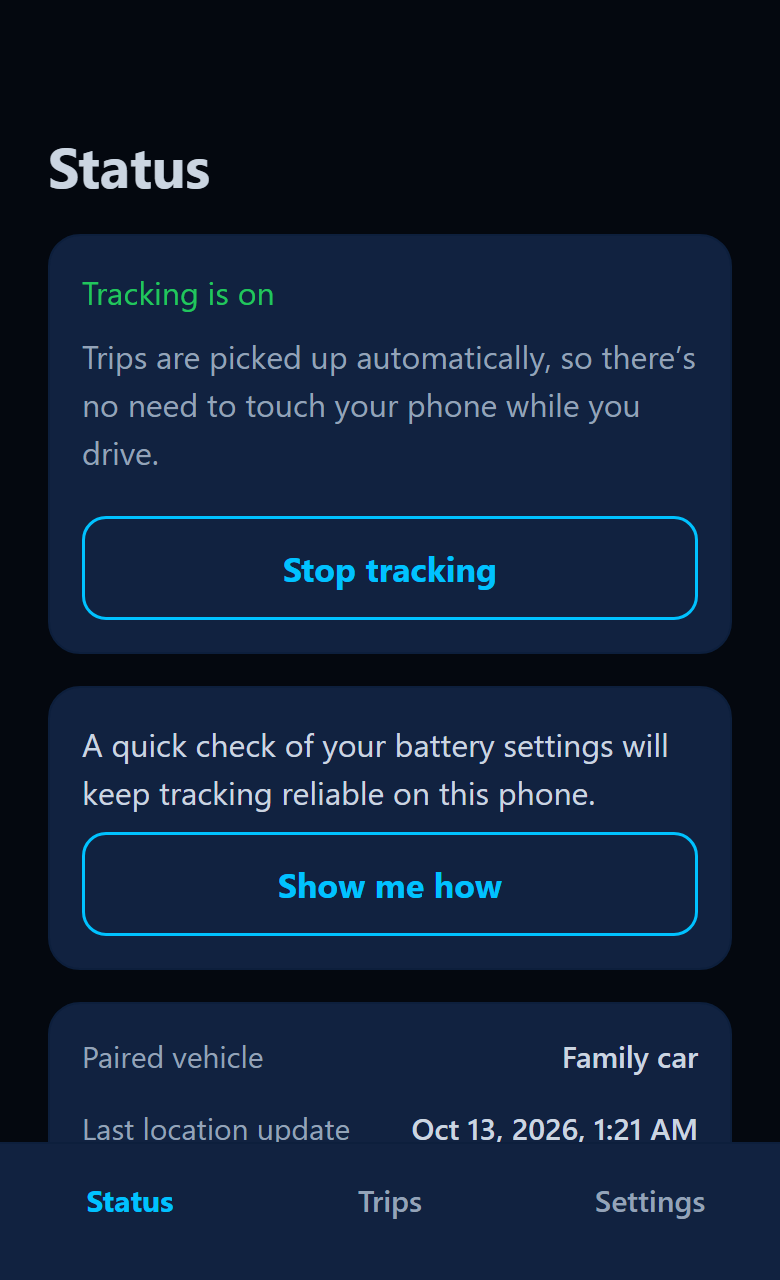
- Keep tracking switched on. Open the app and check that Status says Tracking is on. If it doesn't, tap Start tracking.
- Check your plan. If the subscription isn't active, the app shows a short message and keeps your trips until it is.
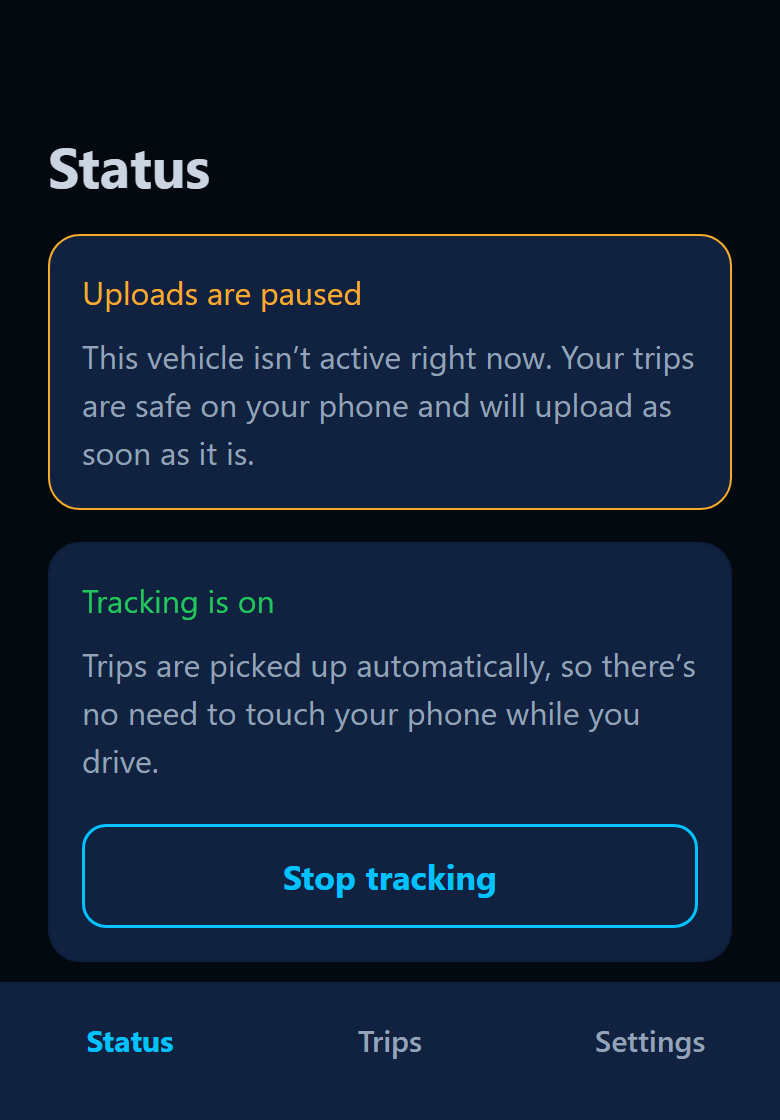
- Give it a little time. Trips upload when the phone has a connection, so a trip may appear a few minutes later.
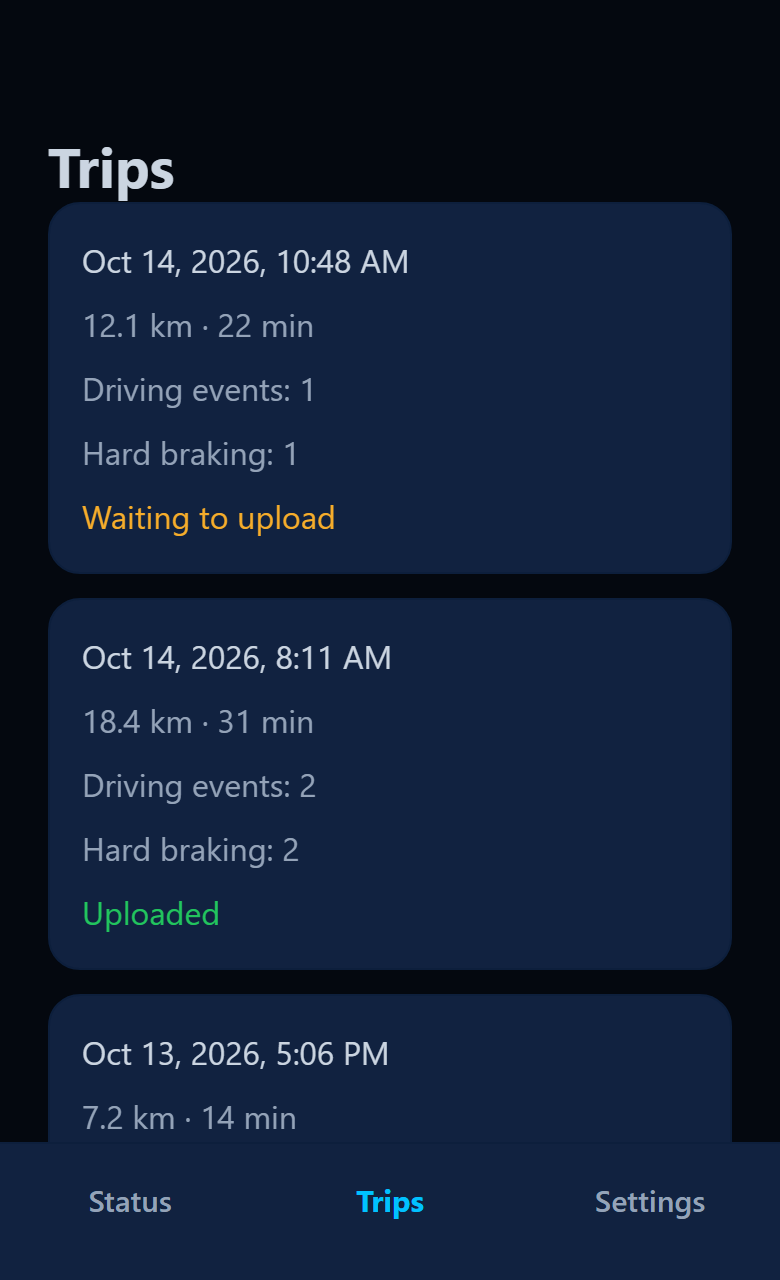
Very short trips are not counted: under about 500 metres or under a minute.
Unpair a phone
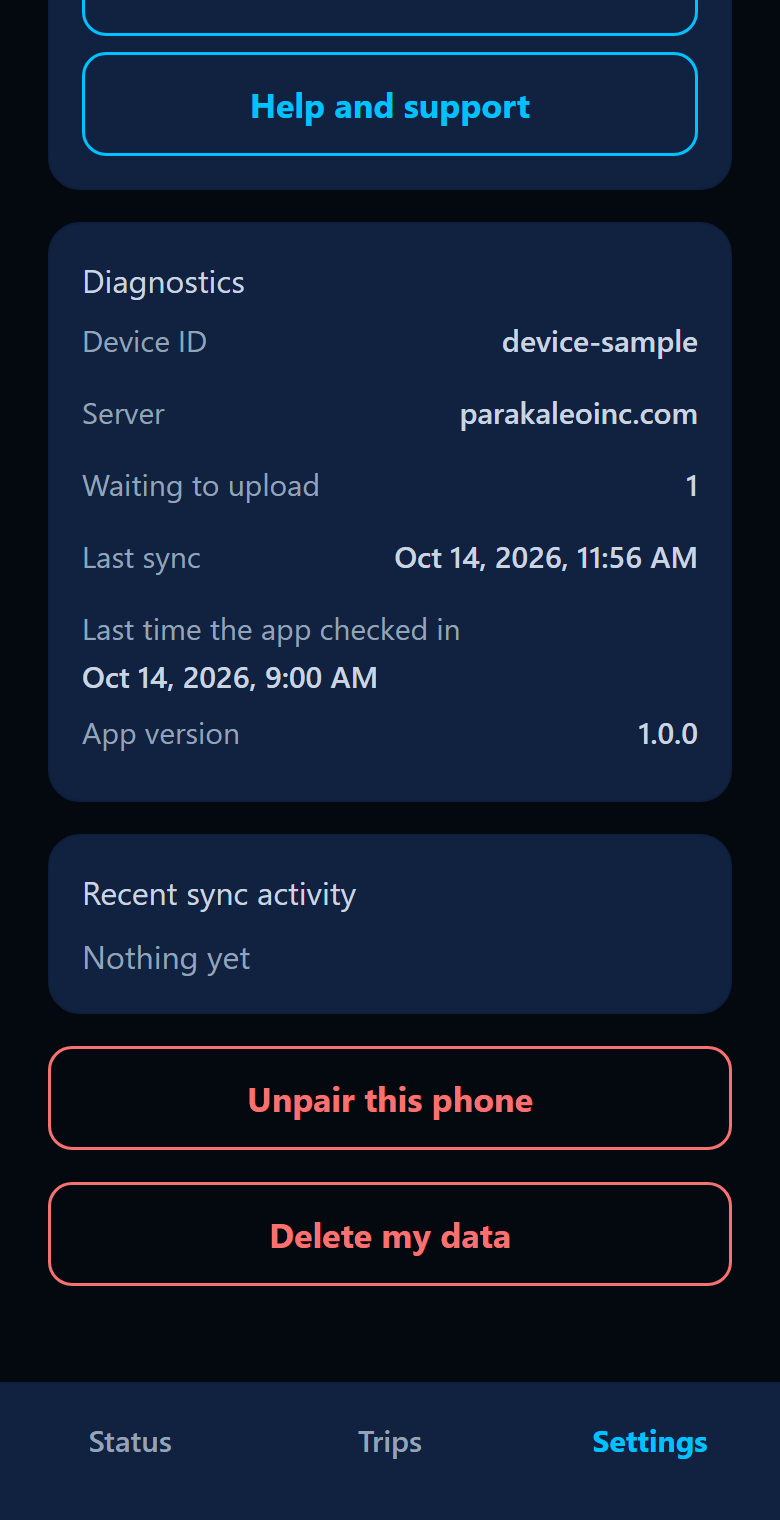
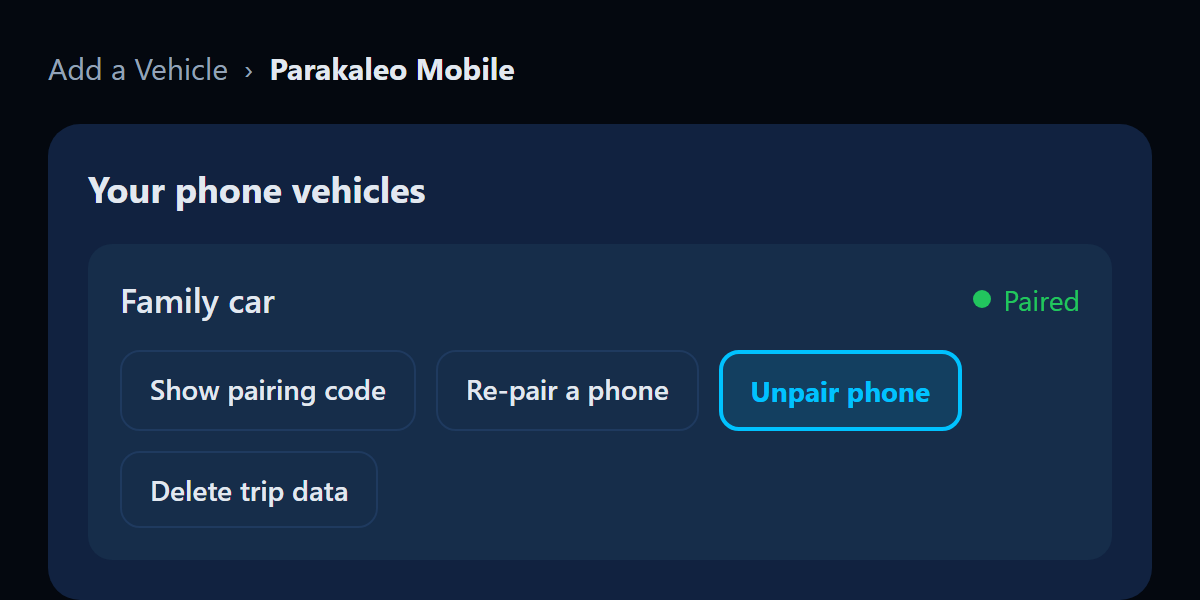
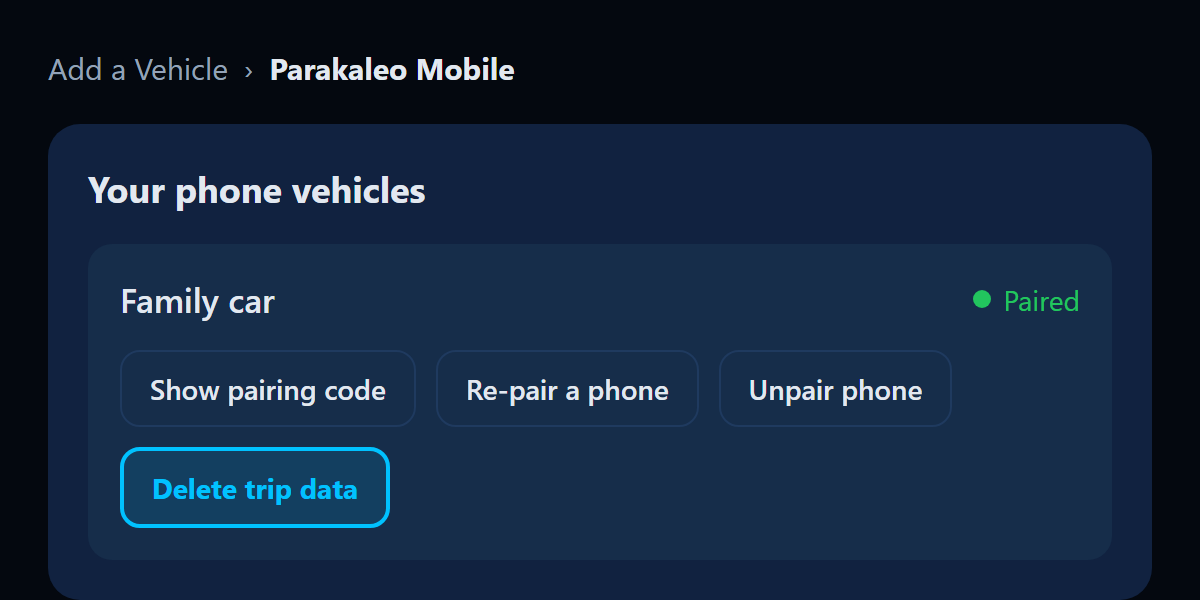
In the app, open Settings and choose Unpair this phone. You can also do it in the portal: Add a Vehicle, Parakaleo Mobile, then Unpair phone next to the vehicle. The vehicle and its trip history stay, and you can pair another phone whenever you like.
Delete your trip data
The account owner or a manager can delete a vehicle's trip data in the portal: Add a Vehicle, Parakaleo Mobile, then Delete trip data. You'll be asked to confirm, and it can't be undone. Deleting trip data does not remove distance already counted toward points and prize qualification unless the whole account is deleted. If you write to us instead, we aim to acknowledge your request within 48 hours and will complete it within 30 days, after checking that it comes from you. The full explanation, and how to delete a whole account, is on our data deletion page.
To stop the app collecting location altogether, switch off its Location permission in your phone's settings. The app then stops recording trips, but data we already hold stays until you delete it as described above.
Common problems
- "Code invalid or expired." Codes last 10 minutes and work once. Show a new code in the portal and type it exactly, letters and numbers only.
- My score hasn't moved. Scores update once a day. Distance shows up sooner.
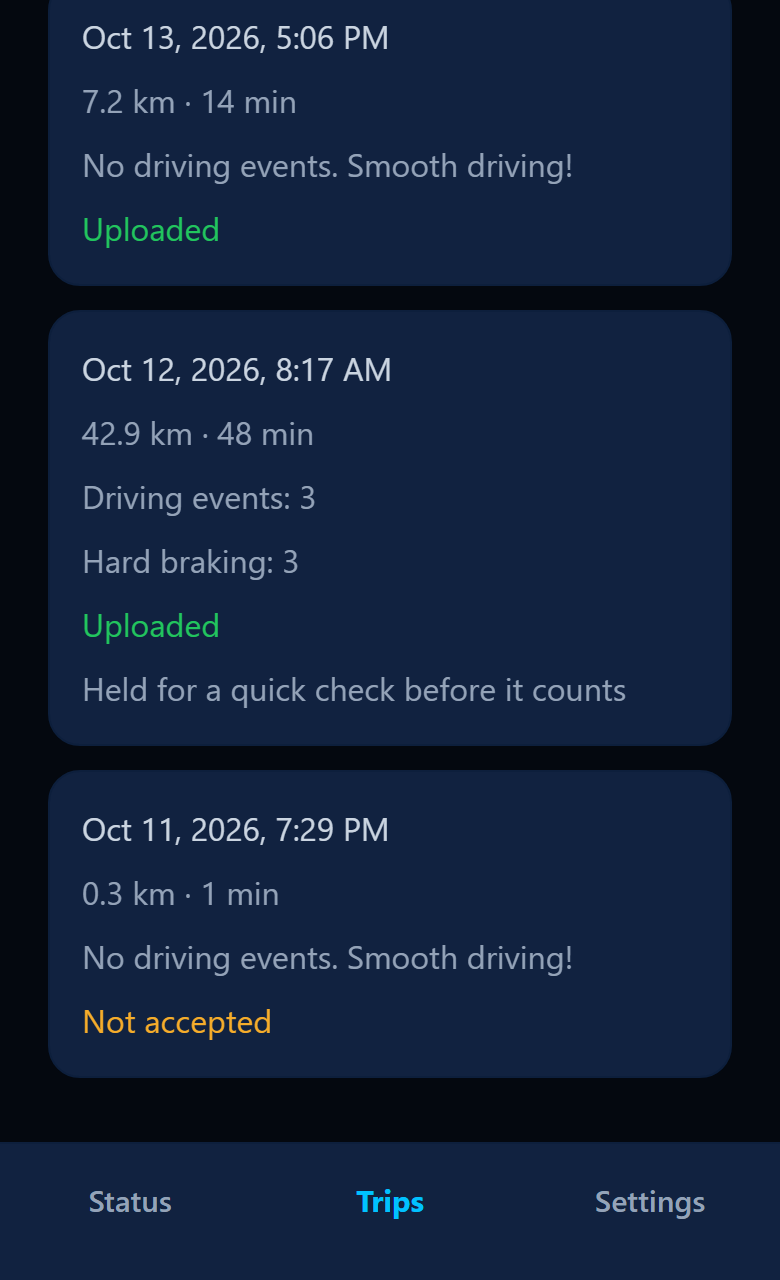
- A trip is missing from my total. Some trips are held back for a quick check, for example when the phone reports a fake location, the GPS position jumps oddly, or two phones in one car record the same drive. The app marks these "Held for a quick check before it counts". Nothing needs doing on your side, and a person reviews them.
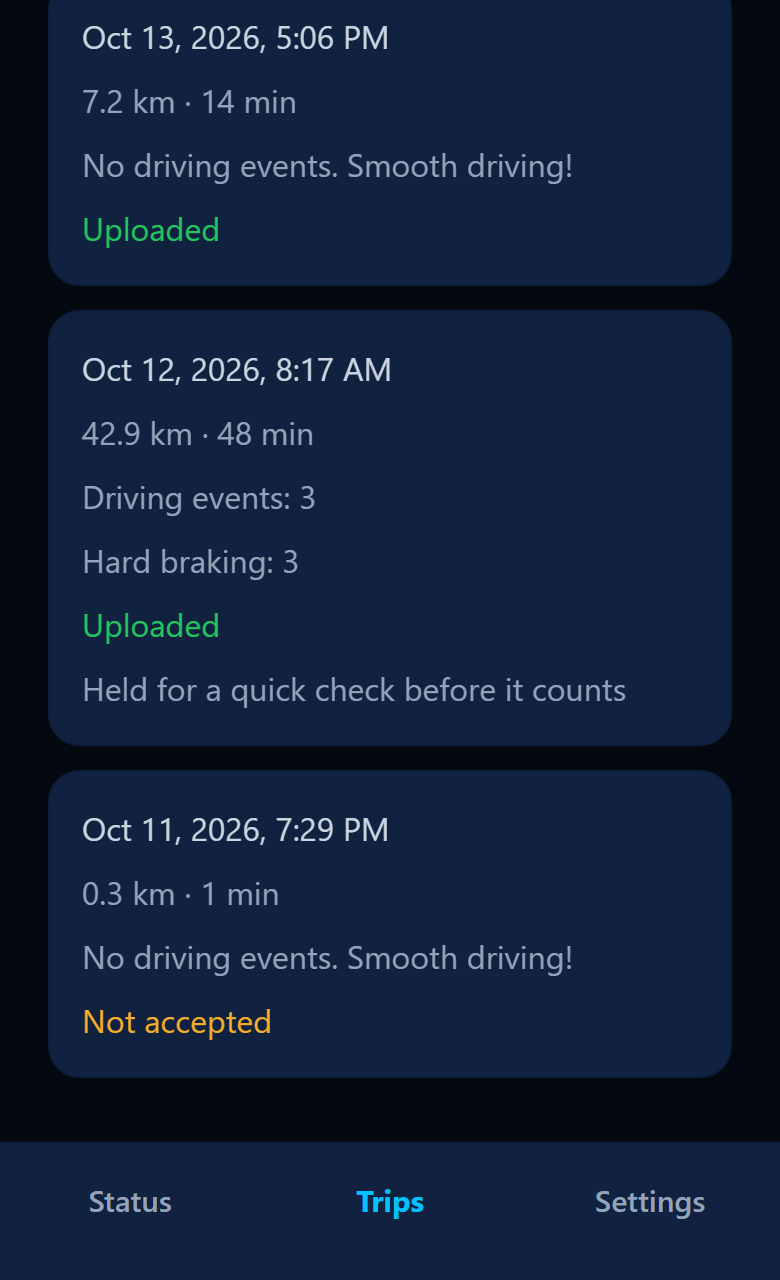
- A trip says Not accepted. The portal turned it down, for example because it was too short or too old. It can't be sent again.
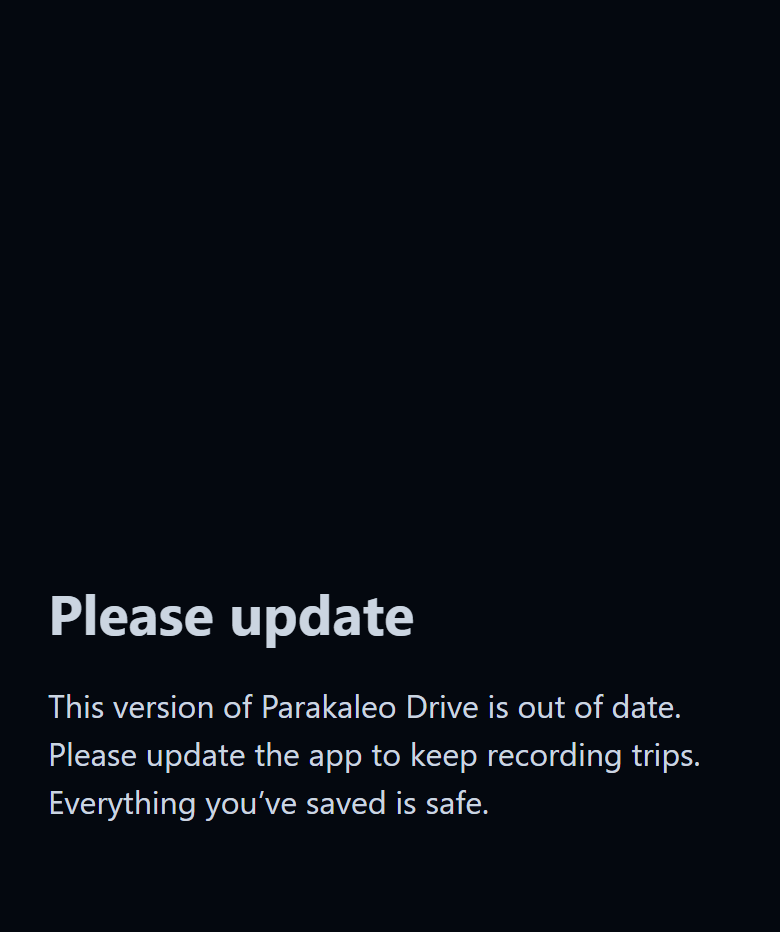
- The app asks me to update. Install the latest version from the App Store or Google Play. Older versions stop working once a new one is required.
- I changed phones. Pair the new phone with a fresh code. The old phone is signed out automatically.
- I drive for someone else. The account owner manages the vehicle and its data and can see your trips for that vehicle. Ask them about deletion, or write to us.
Still stuck?
Write to hello@parakaleoinc.com and tell us your phone model, whether it's an iPhone or an Android, and what you see. We read every message.