Portal Guide
This guide walks through the licensing portal itself, the dashboard where you manage your Parakletos subscription, add vehicles (with either Parakaleo Engine or Parakaleo Mobile), and see your Safety Score. It matches the portal as it stands today, and we'll keep it updated here as new features roll out. The screenshots are examples, and your portal may look slightly different from them as we keep improving it. If you get stuck on anything below, our support team is a quick email away.
A Quick Walkthrough: From Signing Up to Registering Your First Vehicle
New here? Start with this part. We'll walk through a whole first visit together, one step at a time, with real pictures from the portal along the way. By the end, you'll know how to sign up, look around your dashboard, see your price, and register your first vehicle. None of it is hidden, and none of it is hard. Take your time, and feel free to skip ahead the moment you feel ready.
Sign Up
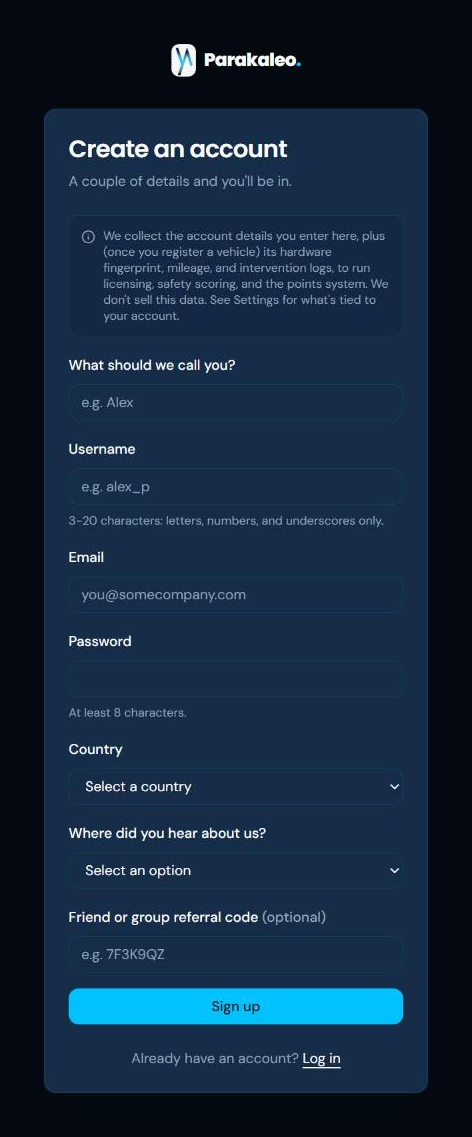
Head to the portal and click Sign Up. Fill in your name, a username, your email, a password, and your country, then tell us where you heard about us. Referral code from a friend or a group? Pop it in near the bottom, so the right person gets credit for it. Click Sign Up, and you're nearly there.
Confirm Your Email
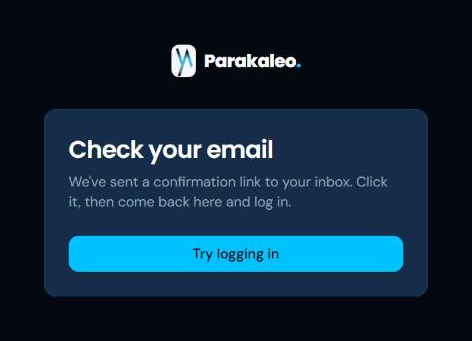
We'll send a confirmation link straight to your inbox. Open that email and click the link, and your account is ready. Can't find it after a minute or two? Have a quick look in spam, just in case it landed there instead.
Log In
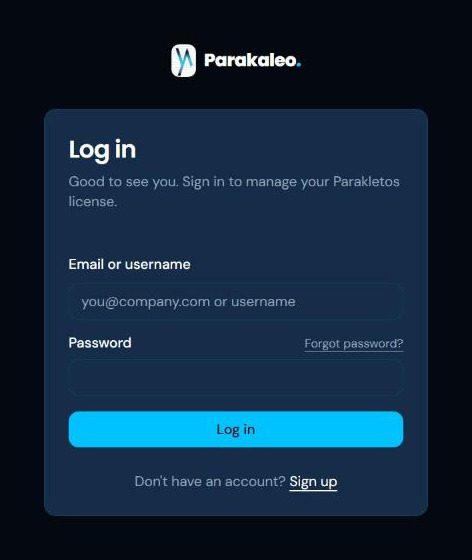
Back at the portal, type your email or username, then your password, and press Log In. Forgotten your password already? Just click the small link above the password box, and we'll send you a fresh one by email.
Meet Your Dashboard
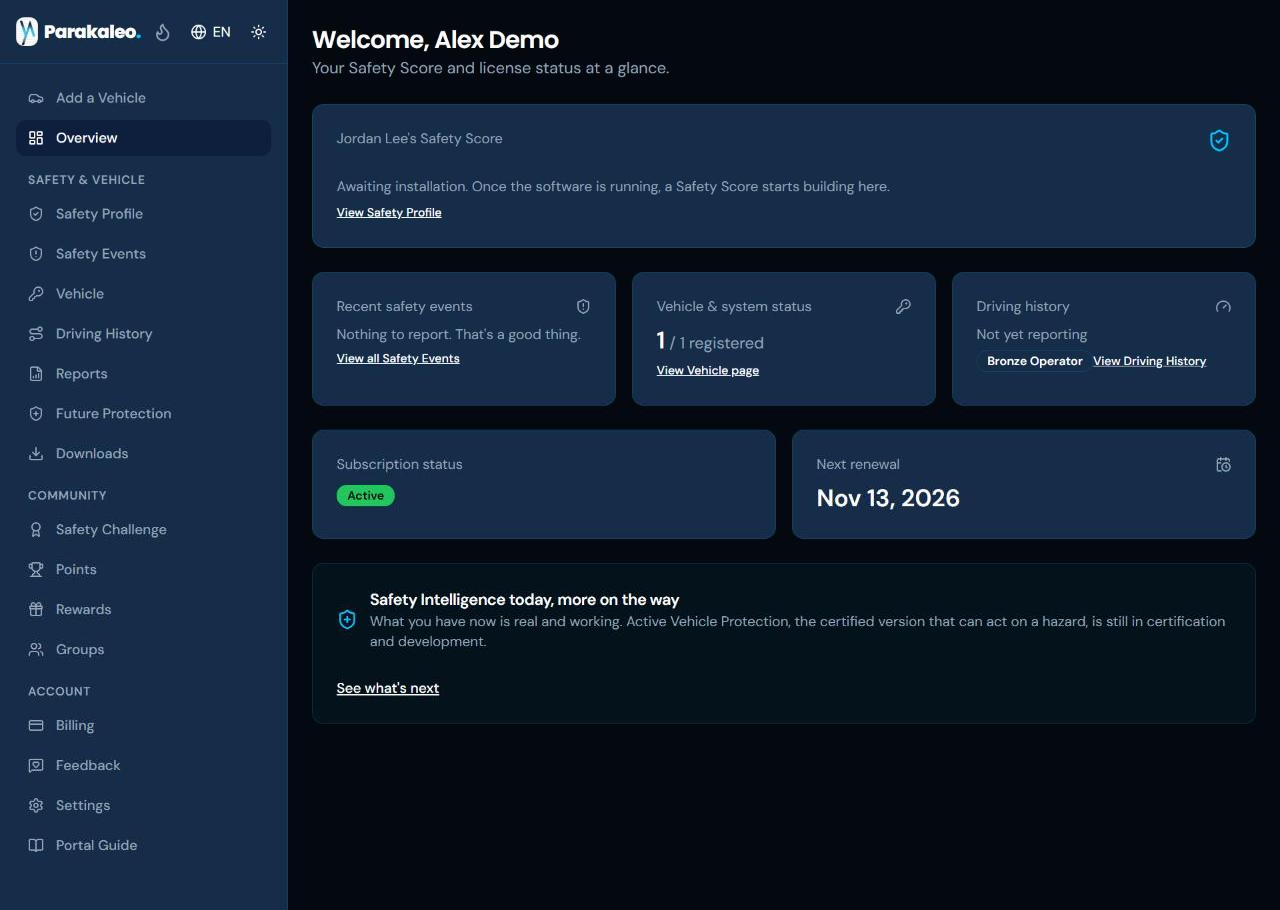
Once you're in, this is home. At the top is your driver's Safety Score card, which says plainly that it's waiting for the first vehicle to report in. Below it you'll find one panel for each tracking method on your account, Engine and Mobile, each with its own vehicle count, subscription status, next renewal date, and distance driven, followed by your recent safety events and your overall driving history. Nothing here is complicated. It's just an honest snapshot of where your account stands today. The picture shows an account that has already finished the steps below, so you can see where things end up.
Set Up Your Billing
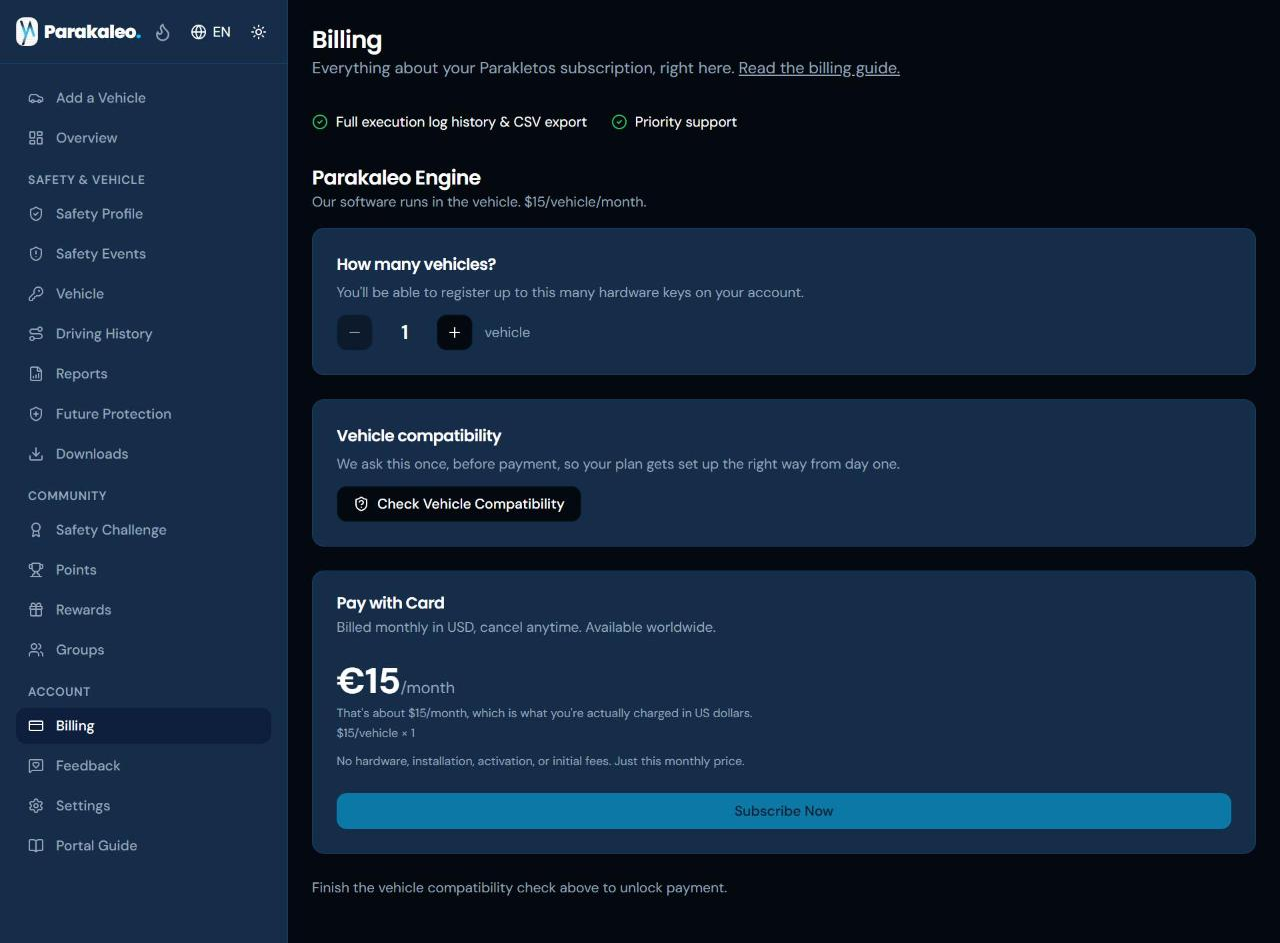
Click Billing next, since a vehicle can't be set up until a plan is active. You'll see two plans: Parakaleo Engine at $15 per vehicle per month, where our software runs inside the vehicle, and Parakaleo Mobile at $20 per vehicle per month, where the Parakaleo phone app does the tracking and there's no hardware at all. Pick the plan that fits each vehicle, and feel free to mix both on one account. Prices are in US dollars; applicable taxes may be added at checkout. Use the small stepper to set how many vehicles you want covered, and watch the monthly price update right in front of you. For Engine, you'll answer a short vehicle compatibility check first, so your plan gets set up the right way from day one. Once that's done, Subscribe Now unlocks with a clear, honest price on screen, nothing hidden underneath it. The picture shows the Engine plan, with the Mobile plan just below it on the same page.
Add a Vehicle
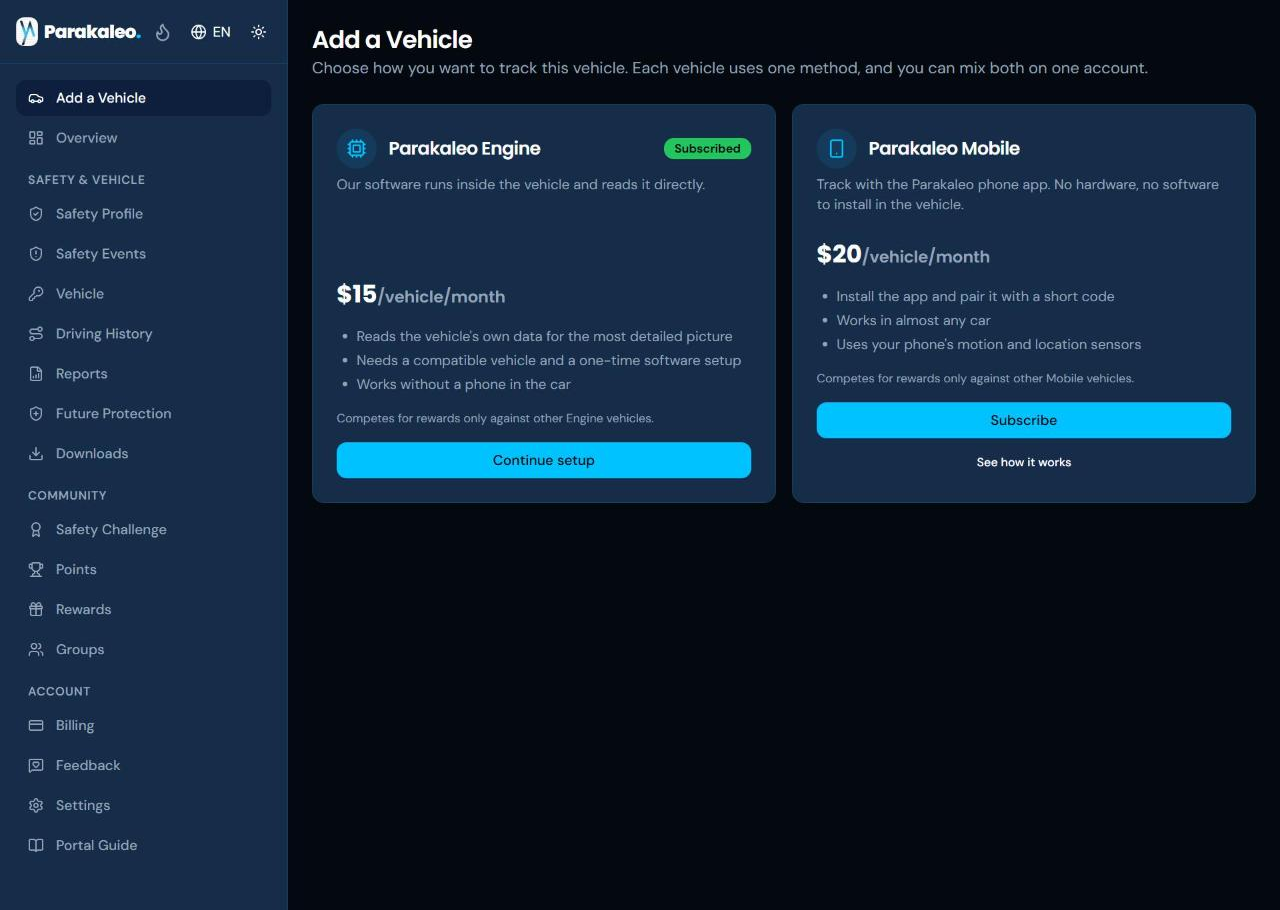
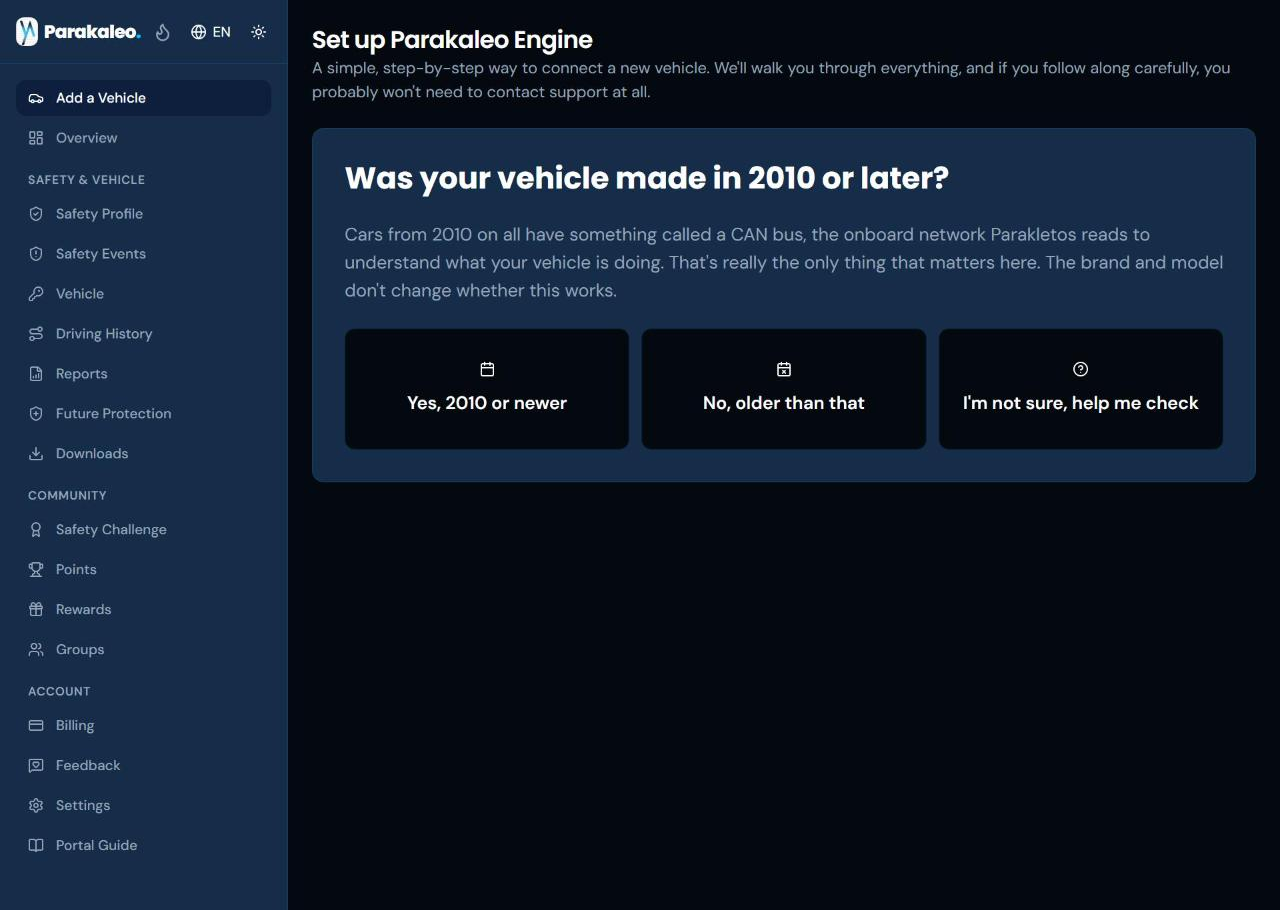
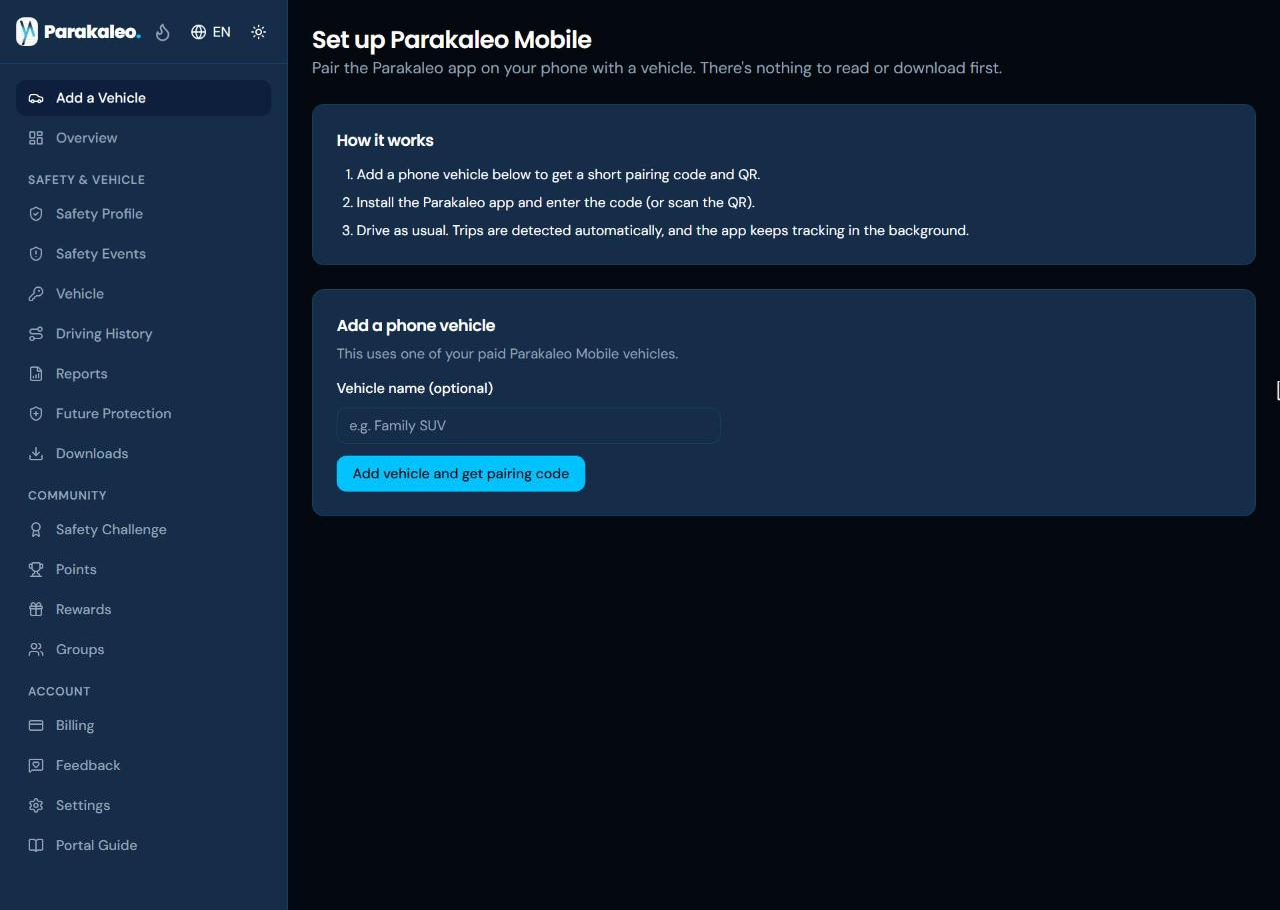
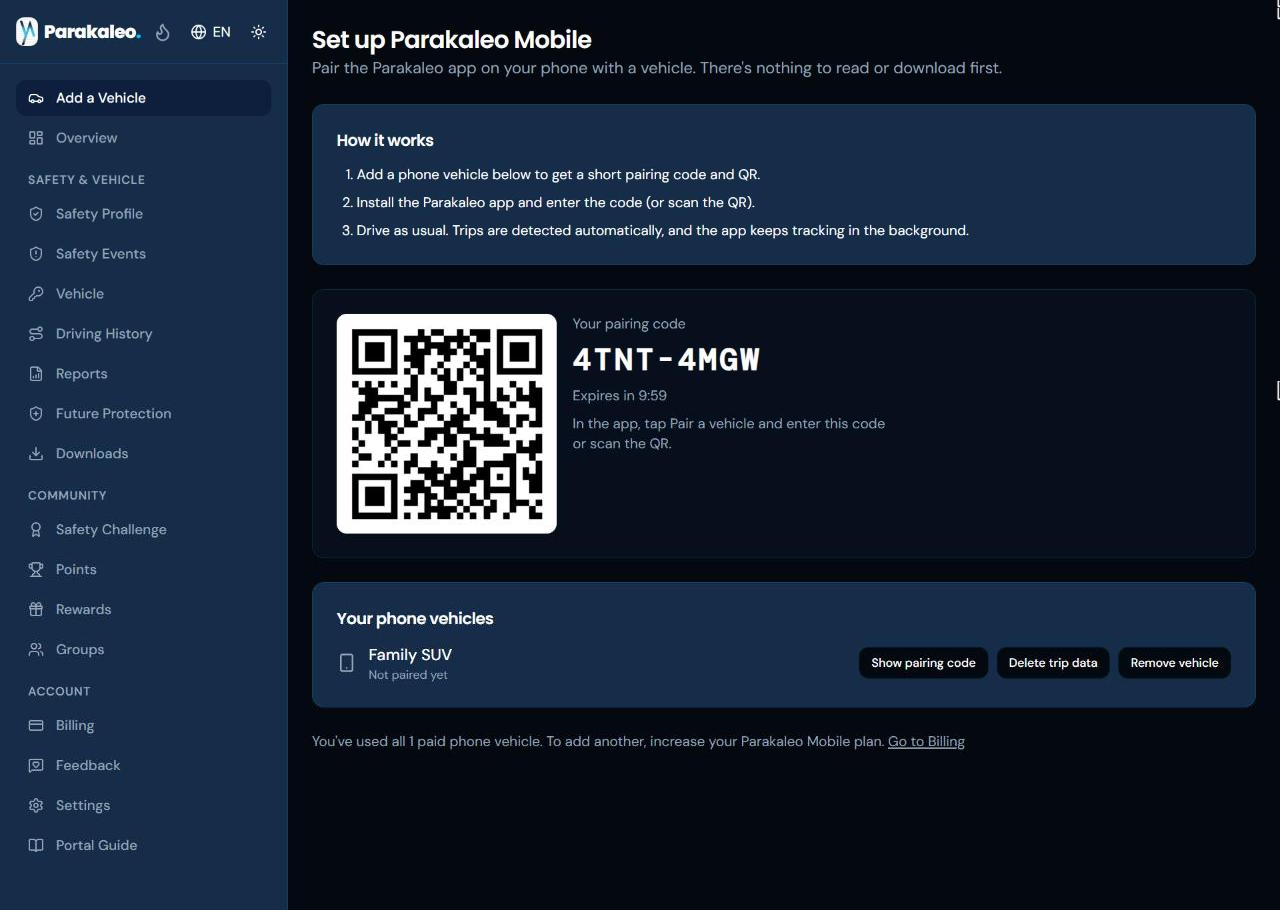
With your plan active, click Add a Vehicle in the menu on the left. Here you choose how this vehicle will be tracked: Parakaleo Engine, where our software runs inside the vehicle and reads it directly, or Parakaleo Mobile, where the phone app does the tracking and you pair it with a short code. Each vehicle uses one method, and each method competes for rewards only against vehicles using the same method. Choose Engine and click Continue setup, and the wizard asks one simple question: was your vehicle made in 2010 or later? Many cars from 2010 on have a CAN bus, the onboard network Parakletos reads. Pick whichever answer is true for your vehicle, or ask the wizard to help you check. An older vehicle can still be set up, and the wizard simply tells you upfront that hazard detection won't be as reliable on it yet. Choose Mobile instead and the portal gives you a short pairing code and a QR code to enter in the Parakaleo app on your phone.
Register Your Vehicle
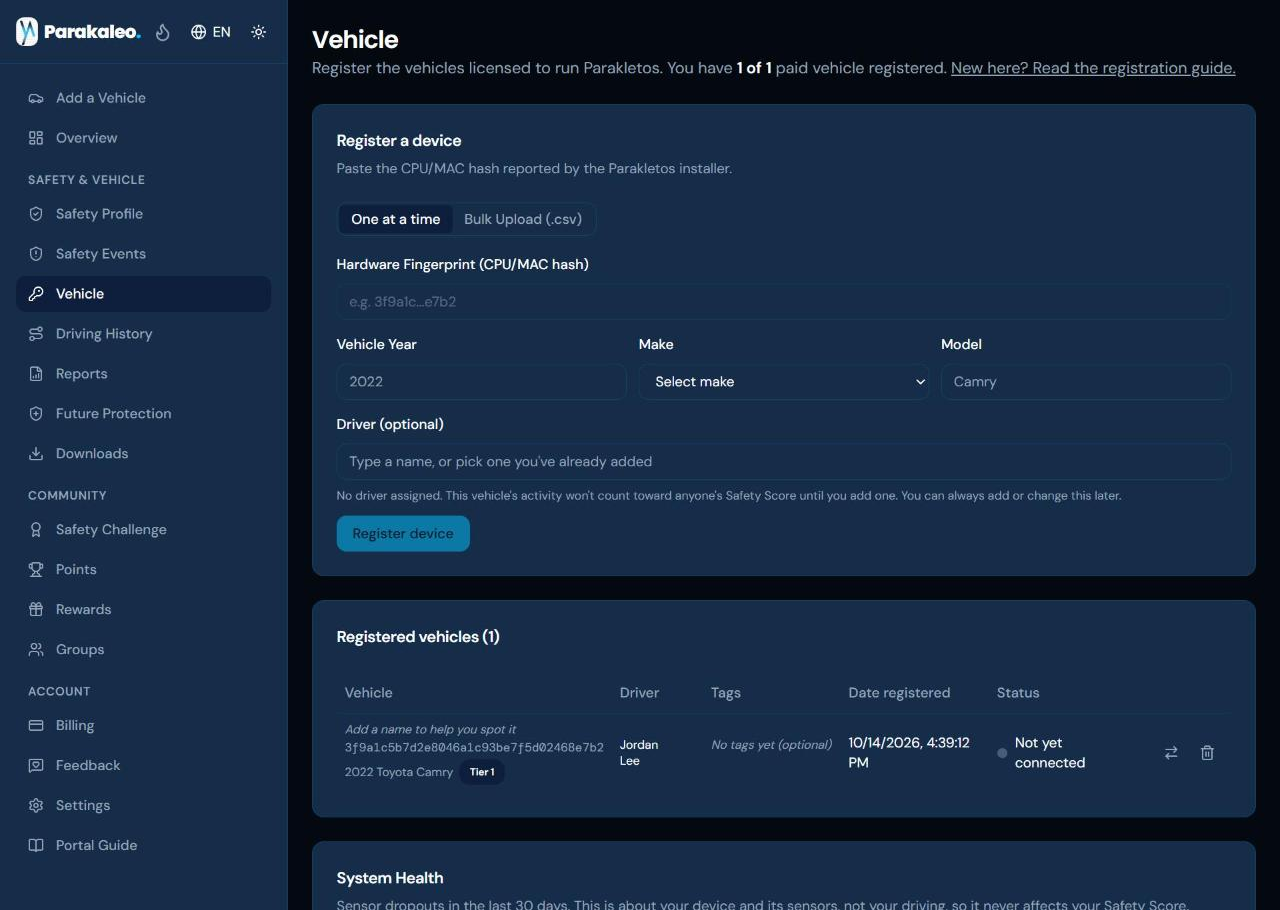
For an Engine vehicle, paste in the hardware fingerprint your Parakletos installer printed out on the Engine Vehicles page (under Engine in the menu), and fill in the vehicle's year, make, and model. Adding a driver here is optional, but it's worth doing early, since a vehicle only starts building someone's Safety Score once a real driver is attached to it. Click Register Device, confirm the details look right, and your vehicle appears right away in the list below, ready to go. A Mobile vehicle has no fingerprint to paste: you add it on the Mobile setup page and pair your phone with the code instead.
Watch Your Safety Profile Grow
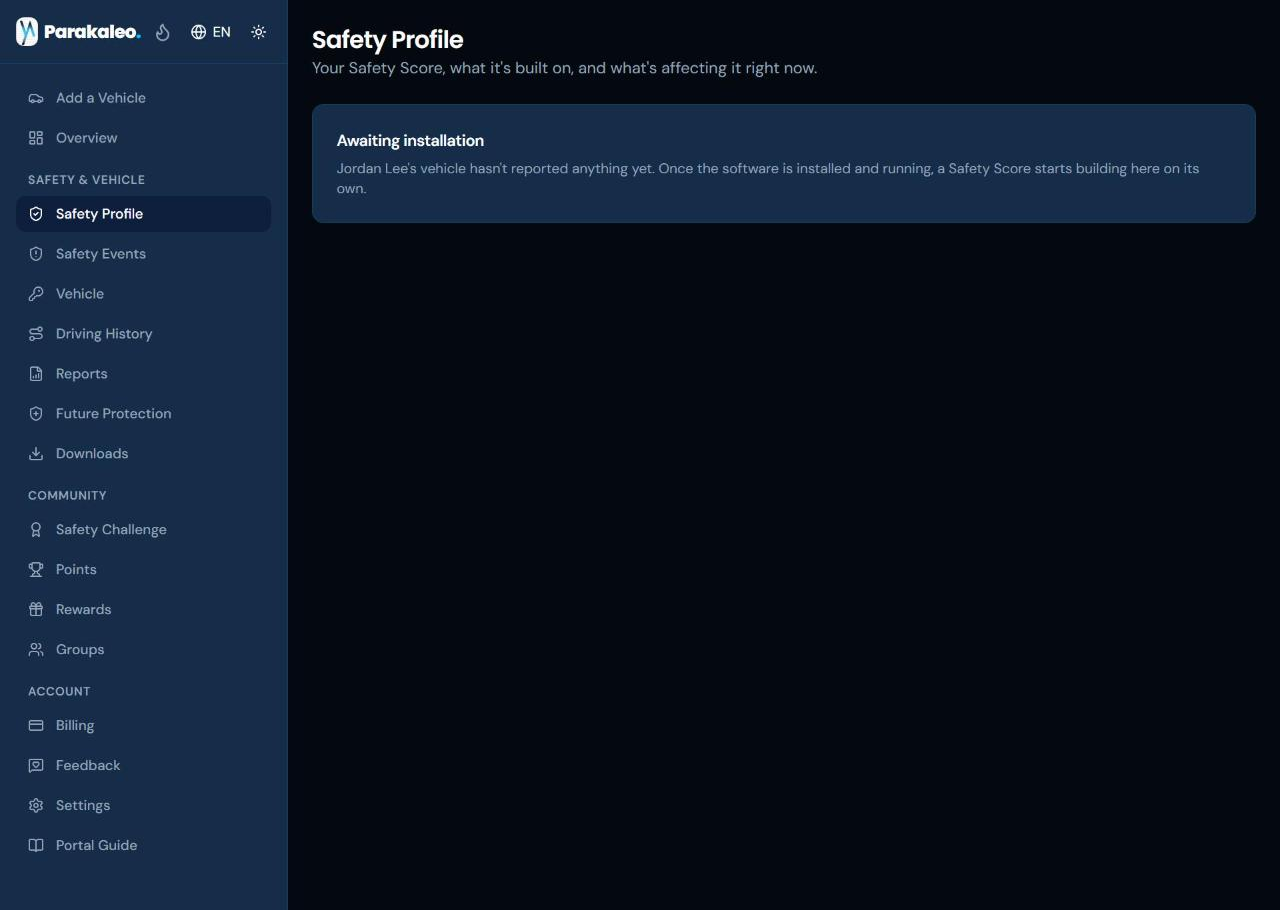
Last stop: Safety Profile. Right after registering, you'll see an honest "awaiting installation" note instead of a big number, since your vehicle hasn't reported anything yet. That's completely normal. Once the software is installed and running (or, for a Mobile vehicle, once the app is paired and your first trips come in), your Safety Score starts at 100 and moves down when a hazard is logged against your driver. Give it a little time and a little driving, and a real, steady picture will take shape right here.
And that's the whole first visit: eight steps, start to finish, from signing up to a clear price on the screen and a vehicle ready to report in. Everything else in this guide goes deeper into each of these pages, for whenever you want the full story behind a number or a setting.
Getting Started
When you sign up for a portal account, you'll enter your name, email, a username, and your country. If someone referred you or you're joining a group, you can enter that code during sign-up so the right person gets credit.
Before you can download the Engine software or generate a license, you'll need to accept the Early-Access License Agreement, a one-time checkbox in the portal covering the safety terms of using Parakletos. It's the same agreement described in our Terms of Service, and until you accept it, downloads and license generation stay locked.
After that, Add a Vehicle in the menu lets you choose how each vehicle is tracked. Parakaleo Engine is software that runs inside a compatible vehicle. Its setup wizard starts with one simple question, whether the vehicle was made in 2010 or later, and then guides you through getting the software running and registering the vehicle, after which syncing and reporting happen automatically. Parakaleo Mobile uses the Parakaleo phone app instead. You add a phone vehicle in the portal, get a short pairing code and a QR code, and pair the app, with nothing to install in the vehicle itself. Neither method is better than the other. It just depends on your vehicle and how you'd like it tracked, and you can use both on one account.
Registering a Vehicle
For Parakaleo Engine, you can register a vehicle one at a time from the Engine Vehicles page, or all at once with a bulk CSV upload if you're setting up several vehicles together. The bulk upload accepts an optional driver column too, so you can assign drivers to a whole batch in one go.
Either way, registering an Engine vehicle records a hardware fingerprint for the compute module running Parakletos, along with the vehicle's year, make, and model. From that, the portal works out whether your vehicle is Tier 01 or Tier 02.
A Tier 01 vehicle already has the kind of factory driver-assist hardware that may let a future, certified Active Vehicle Protection run over its own CAN bus, possibly without extra parts. A Tier 02 vehicle would need a physical brake actuator, and steering hardware too if you want that, before that future system could act on it. To be clear about what this means today: neither tier changes anything about your Safety Intelligence subscription, and there's no rush to do anything about it. We don't sell, ship, or install that hardware ourselves, and sourcing and fitting it would be at your own responsibility. If your vehicle is Tier 02 and you ever want to prepare for Active Vehicle Protection down the road, you'd source that hardware yourself against our published specification, entirely on your own timeline. Nothing about your Safety Score or your subscription depends on it.
When you register a vehicle, you can also assign it to a driver. This is optional. If you skip it, you'll see a clear reminder that the vehicle's activity won't count toward anyone's Safety Score until a driver is added, both on that vehicle's row and as a banner if any of your vehicles are missing one. You can add or change a driver at any time from the Vehicles page under Engine or Mobile, and it's simple to do, just a name you pick, reusable across every vehicle you own. One thing worth knowing: reassigning a vehicle to a different driver only affects data going forward. It never rewrites who past activity already counted for, and if a vehicle joins a driver who already has a history elsewhere, their numbers only start moving from that point on, not retroactively.
Parakaleo Mobile vehicles are added a little differently. Open Add a Vehicle, choose Parakaleo Mobile, and add a phone vehicle (a nickname is optional). The portal gives you a short pairing code and a QR code to enter in the Parakaleo app on the phone that will ride in that vehicle. There's no hardware fingerprint and nothing to install in the vehicle. A phone vehicle uses one of the paid Mobile vehicles on your plan, and you can re-pair a different phone later if you need to. The app is a companion to a licensed account that is set up on the web. It contains no purchases and does not sell or unlock anything. When a driver pairs, the app asks them to accept the Terms of Service and Privacy Policy and to confirm they are 18 or older, and it records which version they accepted.
Reading Your Safety Score and Safety Profile
Your Safety Score lives on your Safety Profile page. It's a rolling 30-day number that starts at 100 and moves down when the system logs a hazard your driving was involved in, weighted by how serious the moment was and normalized against how much driving history stands behind it. A single risky moment early on, before you've built up much history, will move the score more than the exact same moment would once you've got months of clean driving behind you. That's on purpose. One bad moment against a long track record really is different from one bad moment against a single week.
Because a score means very little without knowing how much driving actually backs it up, every Safety Score always shows its maturity tier right alongside it: Building (there isn't enough driving history yet to say much), Established (a real picture, still growing), or Settled (a solid, steady history to draw on). If your vehicle hasn't synced in a while, you'll also see a note showing when the data was last updated, so a score never looks more current than it actually is.
Right now, your score is built from one real component, how well the system's hazard detections line up with what actually happened, which we call Hazard Response. As more of the underlying vehicle telemetry comes online, a second component, Driving Smoothness, will join it, and the page will say plainly once that happens rather than showing you a number with nothing real behind it.
Under the score, you'll find a plain answer to "why did my score change," a short list of exactly what moved it and by how much, plus a forward-looking line naming whatever's affecting your score the most right now, so you've got something to actually act on rather than just a number to look at. No single event determines your score by itself. A pattern of events can still add up, but one moment alone is capped in how much it can move things.
If you want the full breakdown of the math behind all of this, the "How your Safety Score works" page on the portal walks through it plainly, including what the system doesn't yet know.
Your Safety Profile also has a Share Profile button. Sharing is entirely your choice and off by default. Turn it on and you can pick between keeping it private or making it visible to anyone with the link, and either way, a shared profile only ever shows aggregate numbers, never exact timestamps or raw telemetry. It's a nice thing to have on hand, whether that's for yourself, a friend, or down the road, anyone who wants to see a real driving record instead of just taking your word for it. Safety Scores are meant for coaching and fleet management. They are not for credit, hiring, firing, tenant or insurance-eligibility decisions, and a shared profile should never be used for those either.
Safety Events and System Health
The Safety Events page shows the hazard moments your vehicles have logged, grouped by how serious each one was, with plain-language cards and an "advanced details" option if you want the full technical picture. You can filter by driver or by vehicle. If a vehicle hasn't logged anything yet, or hasn't reported in for a while, the page says so honestly rather than showing an empty table with no explanation.
You'll sometimes see a separate System Health reading on the Engine Vehicles page too. This tracks moments where the system's sensors dropped out or fell back to a safe state, which is a hardware or connectivity issue, not a driving decision. It's kept completely separate from your Safety Score for exactly that reason. A sensor having a bad day shouldn't be held against the person driving.
Driving History
Driving History brings together your mileage, certificates, and badges in one place. Distance is shown honestly. If a vehicle hasn't reported any mileage yet, you'll see a plain "not yet reporting" message instead of a number that doesn't mean anything. As real distance builds up, you'll see it here, along with any mileage-based certificates and milestone badges you've earned along the way. Certificates print the driver's name exactly as stored, so there's no retyping needed at the moment you generate one. If you want the raw activity log behind everything, that's still available too, under Activity Log in the Engine section of the menu, with the same CSV export, search, and upload tools it's always had.
The Safety Challenge
The Safety Challenge is a monthly ranking of drivers by Safety Score, open to any account with a driver set up properly. Your rank is a plain, repeatable calculation from your own driving that month, using the exact same scoring math as your regular Safety Score, just measured over the calendar month instead of a rolling 30 days. There's no draw and nothing random about it.
Engine and Mobile vehicles are ranked separately. Engine drivers compete only against other Engine drivers, and Mobile drivers only against other Mobile drivers, each with their own monthly ranking and prizes.
Showing up on the list is one thing. Qualifying for a cash prize that month is another. The Safety Challenge Rules in the portal require both a referral and a minimum distance driven. Points have no cash value on their own, but they can count toward qualifying. The exact thresholds, prize amounts, eligible regions and tie-break rules are in those rules, which form part of the Terms of Service for the challenge. We keep specific figures out of this guide so it can't drift out of sync with them.
Each month, the top qualifying drivers are ranked by score alone, with a plain, published tie-break rule and no random selection among them. If you've won recently, you'll sit out a short cooldown before you're eligible to win again, and a plain note on your card will tell you when that changes, rather than a claim button that quietly does nothing.
If you place and qualify for a prize, claiming it takes two steps: answering a short skill-verification question, and completing Stripe's own hosted onboarding, where Stripe collects your bank details and identity information directly. We never see or store your raw bank details ourselves. An unclaimed prize expires 30 days after the month closes, so it's worth claiming promptly once you're notified. Cash prizes are governed by the Safety Challenge Rules in the portal and the Official Rules in our Terms of Service. Your personal card on the Safety Challenge page always shows your current position (or an honest "not in the top 100" if that's where things stand), your score, how it compares to last month, and how many points separate you from the next spot up.
The leaderboards show display names and scores to other accounts. If you would rather not appear, ask us to hide your display name. Anyone who shares a referral link must make clear that they receive a reward for referrals. Apple and Google are not sponsors of the Safety Challenge and have no involvement in it.
Billing
Safety Intelligence is billed per vehicle every month, in US dollars; applicable taxes may be added at checkout. That is $15 per vehicle for Parakaleo Engine and $20 per vehicle for Parakaleo Mobile, with no hardware, installation, activation, or other setup fees from Parakaleo hiding underneath those numbers. Each vehicle uses one method, and you can mix both on one account, each plan with its own vehicle count. Any items you buy yourself for Engine are paid to the shop and are not part of it. You can see your current plans, payment method, and billing history right from the Billing page.
If you've set a country in Settings, you'll also see your subscription price, and Safety Challenge prize amounts where they appear, shown as an estimate converted into your local currency, clearly marked as an estimate so there's no confusion about it. That figure is a courtesy only. Whatever your card is actually charged, and whatever a prize actually pays out, always happens in US dollars underneath.
You can cancel your subscription online at any time from the Billing page, or by emailing us. Cancelling stops future billing, and your access ends automatically at the close of the period you've already paid for. Subscription charges are non-refundable once a billing period has begun, including if you cancel partway through it, so your access simply runs to the end of that period. Adding a vehicle part-way through a billing period is charged pro rata for the rest of that period. Removing a vehicle or cancelling gives no credit or refund (except where the law requires one) and takes effect at the end of the period. Deleting your account is different from cancelling: it ends your subscription and your access immediately, with no refund of the current period except where the law gives you one. If we change our prices, we'll tell you by email at least 30 days beforehand, and you can cancel before the change takes effect. If you are a consumer in the EU or UK, your statutory withdrawal right for digital services is described in our Terms of Service.
Groups, Points & Rewards
The points, referral, streak, and group features you already know are still here, unchanged. You'll keep earning points for things like account activity and referrals, and you can still join or start a group with your own code to share with friends, family, or your crew.
One thing worth knowing if you're in a group: if you turn on Safety Score sharing from Settings, your chosen driver's score becomes visible to the other members of that group. This is off by default, and turning it on is entirely your choice. A group roster stays a roster, not a leaderboard. It's not sorted by score and nobody gets singled out for having a lower number. It's just a way for people who already know each other to see how their driving is going.
Sharing your referral link is still one of the easiest ways to help someone you know get started, and to earn a little extra yourself while you're at it. Do tell people plainly that you receive a reward when they sign up through your link. You'll find the Share Referral Link button right on your dashboard, and your certificates and badges from Driving History are easy to download and share from there too, if you're proud of the streak you've built.
Getting Help
If anything in the portal doesn't match what you're seeing, or you just have a question about your account, your Safety Score, or a charge on your bill, email us at hello@parakaleoinc.com and we aim to reply within 48 hours. We know a number like your Safety Score can raise real questions the first time you see it, so don't hesitate to ask.